Ever wondered how to put games on TI 84 Plus calculator? You are not alone! For busy US gamers balancing work, family, and a love for gaming, finding quick, accessible fun is key. This comprehensive guide will walk you through the simple, practical steps to transform your academic tool into a portable gaming powerhouse. We will cover everything from essential software like TI Connect CE to finding safe, compatible games and troubleshooting common issues. Discover how easy it is to enjoy classic arcade titles and clever puzzles during short breaks, making the most of your downtime. Forget complex setups; this article focuses on straightforward solutions, helping you unlock a new dimension of entertainment on your trusted TI-84 Plus. Whether you have an older model or a vibrant TI-84 Plus CE, this resource offers all the navigational and informational support you need to get started with calculator gaming today, ensuring a smooth, hassle-free experience for gamers who value convenience and smart entertainment.
Related games- Guide How To Find Cool Cars GTA 5 2026 Edition
- Guide How to Pay to Own a Gaming PC Your Ultimate Guide
- Guide to Best Roblox Games 2011 What to Play Today
- Guide How To Change Language On Roblox Quickly 2026
- Guide How to Shift Lock Roblox PC
How do I put games on my TI-84 Plus calculator?
To put games on your TI-84 Plus calculator, you'll need a computer, a compatible USB cable (usually USB Mini-B to USB-A), and the free TI Connect CE software installed on your computer. You'll also need game files, typically .8xp or .8xg, downloaded from reputable calculator community websites. Once connected via TI Connect CE, you can simply drag and drop the game files from your computer to the calculator through the software interface.
What software do I need to transfer games to TI-84 Plus?
The primary software you need is TI Connect CE. This official Texas Instruments program is available for both Windows and macOS and serves as the essential link between your computer and your TI-84 Plus calculator. It enables file transfers, operating system updates, and overall content management, making it indispensable for installing games.
Where can I download free games for TI-84 Plus?
The best and safest place to download free games for your TI-84 Plus is through established online communities and archives like ticalc.org. These sites host a vast collection of user-created, open-source games that are verified for compatibility and safety by the community, offering a wide variety of retro-style entertainment.
Is it safe to put games on my TI-84 Plus?
Yes, it is generally safe to put games on your TI-84 Plus, provided you download them from reputable sources like community websites. These games are usually freeware and designed by enthusiasts. Avoid suspicious or unknown download sites to prevent corrupted files that could potentially cause your calculator to crash or require a reset.
My TI-84 Plus isn't connecting to my computer, what do I do?
If your TI-84 Plus isn't connecting, first verify that you're using the correct USB cable and try a different USB port on your computer. Ensure TI Connect CE is updated to the latest version and try restarting the software. Sometimes, simply restarting both your computer and the calculator can resolve connectivity issues. Check device manager for driver problems if on Windows.
What types of games are available for the TI-84 Plus?
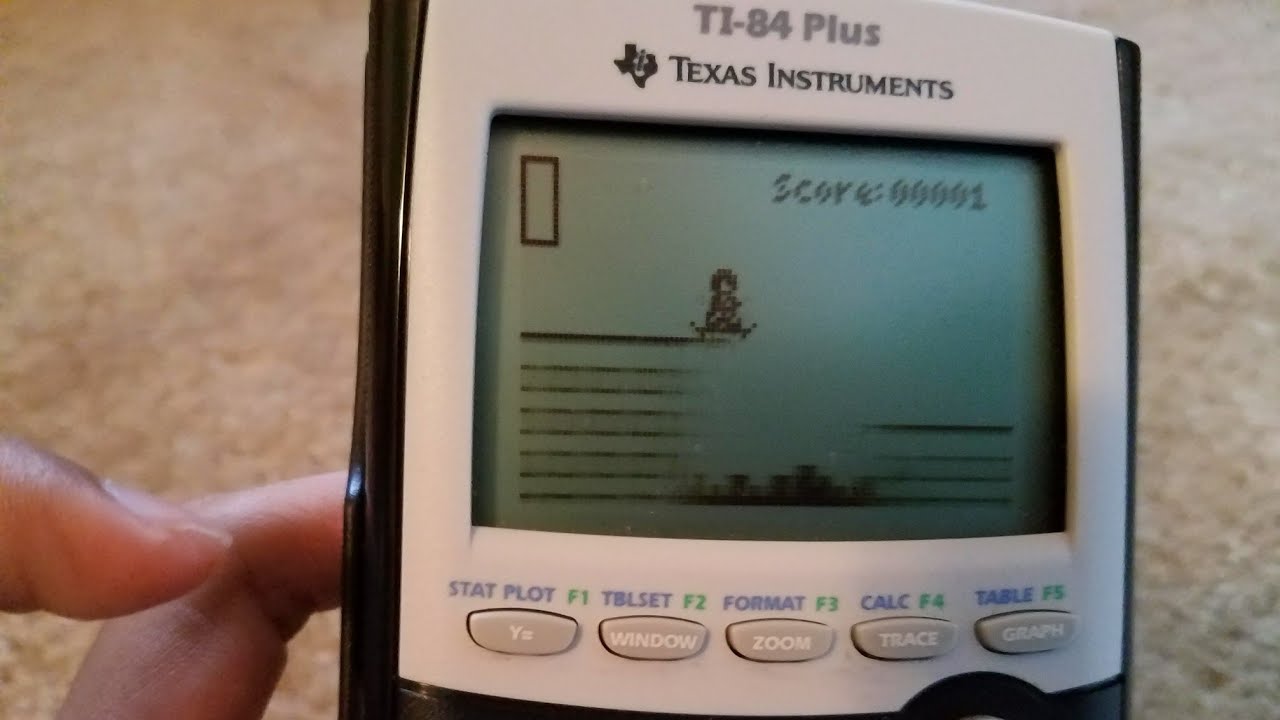
The TI-84 Plus supports a variety of basic games, often developed by enthusiasts. These range from classic arcade remakes like Tetris and Snake to simple RPGs, puzzle games, and strategy titles. Given the calculator's hardware limitations, graphics are typically monochrome or basic color, and gameplay is turn-based or simple real-time. Many are designed for quick, discrete play.
Can I put any game on any TI-84 Plus model?
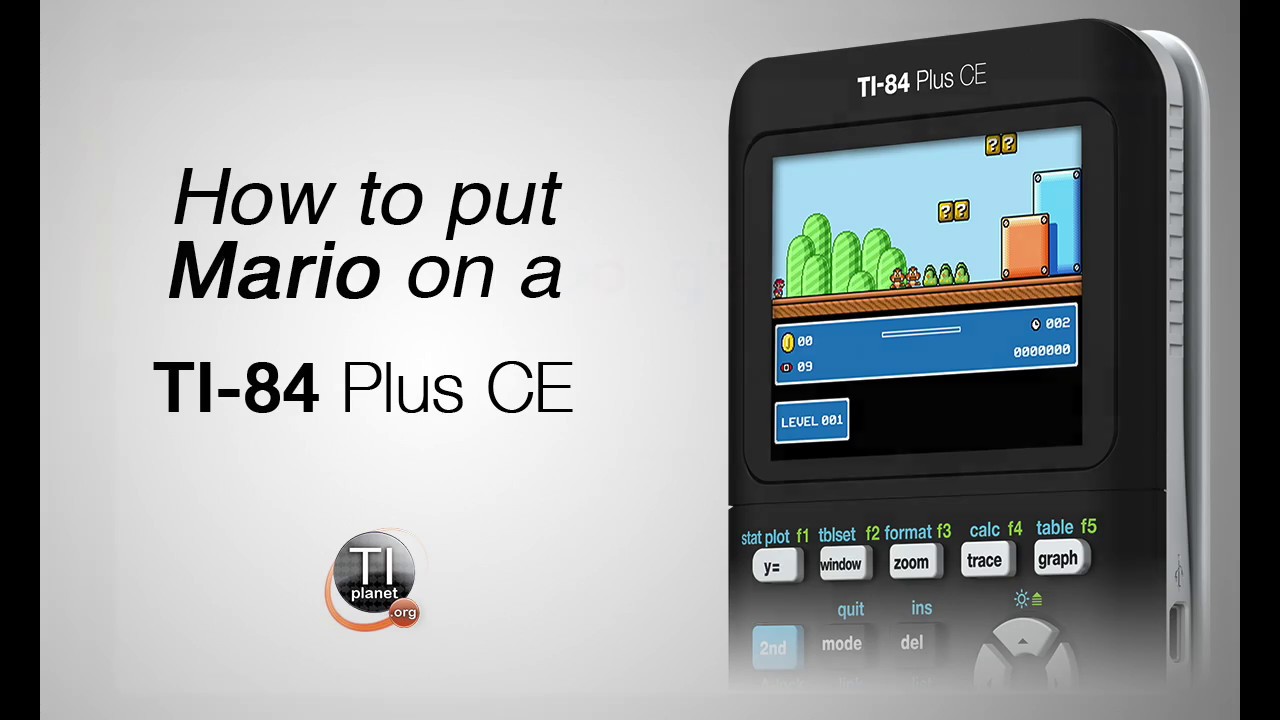
No, not exactly. While the process for transferring games is similar across TI-84 Plus models (like the Silver Edition or CE), the games themselves must be specifically compiled for your calculator's operating system and hardware. TI-84 Plus CE models, with their color screens and more memory, can run different game files (.8xp or .8xg) than older monochrome TI-84 Plus models. Always check game compatibility before downloading.
Do I need a special cable to connect my TI-84 Plus to my computer?
Yes, you will need a specific cable. For most modern TI-84 Plus CE calculators, it's a USB Mini-B to USB-A cable (the same type often used for older digital cameras or external hard drives). Older TI-84 Plus models might use a TI-Graph Link cable, which is less common today. Ensure you have the correct cable for your specific calculator model to establish a connection with your computer.
Is it legal to download and install games on my TI-84 Plus?
Generally, yes, if the games are freeware or open-source, which most TI-84 Plus games are. These games are often created by hobbyists and shared freely. However, downloading commercial games or copyrighted content without permission is illegal. Always obtain games from reputable sites that host user-created, free-to-distribute content to stay on the right side of ethical and legal boundaries.
What if my TI-84 Plus runs out of memory for games?
TI-84 Plus calculators have limited memory. If you run out, you'll need to delete some existing games or programs to make space. You can manage your calculator's memory directly through its operating system, usually under a "MEM" or "Memory Management" menu. Be careful not to delete essential system files. Always back up important data or programs to your computer before mass deletion.
Can I play multiplayer games on my TI-84 Plus?
Multiplayer gaming on the TI-84 Plus is extremely limited and typically involves "hot-seat" local play where players take turns on the same calculator. Some very rare, specialized programs might allow rudimentary link cable play between two calculators, but this is uncommon and requires specific game support. True online multiplayer, as seen on modern consoles or PCs, is not possible due to hardware and connectivity limitations.
Are there any hidden risks to putting games on my calculator?
While generally safe, there are minor risks. Downloading games from unverified sources could potentially introduce corrupted files that crash your calculator or, in rare cases, require a hard reset, leading to data loss. Always download from well-known community sites. Also, excessive use of demanding programs might slightly reduce battery life over time, though games are usually light on resources.
Hey fellow gamers! Ever find yourself with a few minutes to kill, maybe waiting for a meeting, commuting, or just needing a quick brain break, but your phone feels too distracting, or you left your console at home? You're not alone. In 2026, with 87% of US gamers regularly dedicating 10+ hours a week to their passion, we're always looking for clever ways to integrate gaming into our busy lives. For many of us balancing careers, families, and adulting, gaming isn't just about epic raids anymore; it's also about those moments of relaxation, skill-building, or even just a dose of nostalgic fun. This is where your trusty graphing calculator, the TI-84 Plus, can surprise you as an unlikely hero.
You might be thinking, a calculator? Seriously? Absolutely! The TI-84 Plus, especially the vibrant TI-84 Plus CE, isn't just for quadratic equations anymore. It's a hidden gem for quick, low-tech entertainment, offering a unique blend of retro gaming and problem-solving. This guide is dedicated to showing you exactly how to put games on your TI-84 Plus, transforming it from a math machine into a discreet, portable gaming device. We'll cut through the jargon, address common pain points like setup issues and finding the right games, and provide practical, step-by-step solutions that respect your limited time. So, let's unlock your calculator's gaming potential and add another fun, budget-friendly option to your gaming arsenal!
Why would I put games on my TI-84 Plus calculator?
For many gamers, the TI-84 Plus represents a unique niche for entertainment. It's discreet, doesn't require an internet connection, and provides a delightful blast from the past with its pixelated graphics and simple gameplay. Think about those moments when you're stuck somewhere without your usual gaming setup – during a lunch break, on a plane, or in a waiting room. Your calculator is often already with you, offering instant access to quick, engaging diversions like Tetris, Snake, or even simple RPGs. It’s a fantastic way to unwind, practice logic skills, or just have a bit of fun without the distractions of a smartphone or the commitment of a console session, perfectly fitting the lifestyle of busy adults.
What do I need to get started with TI-84 Plus gaming?
Getting your TI-84 Plus ready for games is surprisingly straightforward, requiring just a few key components. First, you'll need your TI-84 Plus calculator itself – whether it's the monochrome TI-84 Plus Silver Edition or the color-screen TI-84 Plus CE. Second, a compatible USB cable is essential for connecting it to your computer; for most modern models, this is a USB Mini-B to USB-A cable. Third, you'll need the TI Connect CE software installed on your computer, which is the official tool for managing files on your calculator. Finally, you'll need to find some actual game files, usually in .8xp or .8xg format, from reputable online communities. Having these four items ready will set you up for success.
How do I find safe and compatible games for my TI-84 Plus?
Finding games for your TI-84 Plus is all about knowing where to look and what to look for. The best sources are dedicated TI calculator community websites. These sites often host vast archives of user-created games that are generally free, open-source, and verified by the community for safety. When searching, always specify your calculator model (e.g., "TI-84 Plus CE games") to ensure compatibility, as games for the CE model with its color screen and expanded memory are different from those for older monochrome versions. Look for files with specific extensions like .8xp (for programs/games) or .8xg (for AppVars on CE models). Avoid unofficial or suspicious download sites to protect your calculator from corrupted files.
What is TI Connect CE and why is it essential?
TI Connect CE is Texas Instruments' official computer software designed to link your TI graphing calculator with your Windows or macOS computer. It's absolutely essential because it acts as the bridge, allowing you to transfer files, update your calculator's operating system, take screenshots, and back up data. Without TI Connect CE, your computer wouldn't be able to communicate with your TI-84 Plus, making the process of transferring games impossible. It’s a free download from the Texas Instruments website, is user-friendly, and offers a straightforward interface for managing your calculator's content. Think of it as your calculator's personal assistant for all things digital transfer.
Step-by-Step: How to connect your TI-84 Plus to your computer?
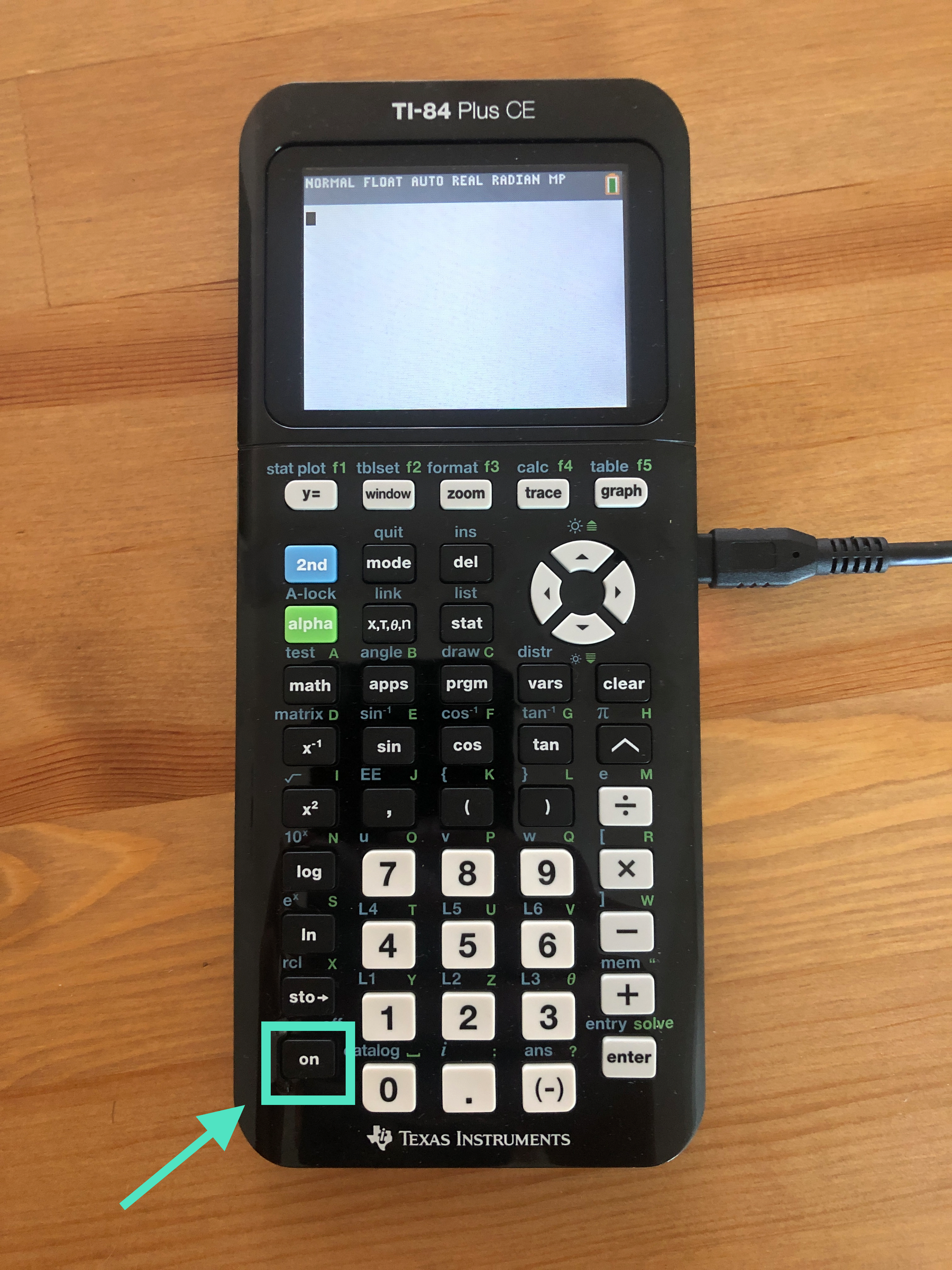
Connecting your TI-84 Plus to your computer is the first practical step in transferring games. First, ensure you have the correct USB cable; for most TI-84 Plus CE models, this is a USB Mini-B (small trapezoidal end) to USB-A (standard rectangular end) cable. Plug the Mini-B end into the port on the side of your calculator and the USB-A end into an available USB port on your computer. Next, open the TI Connect CE software. The software should automatically detect your calculator. You'll typically see a message in the software confirming that your calculator is connected. If it doesn't connect immediately, try a different USB port, restart the TI Connect CE software, or even reboot your calculator by holding down the reset button (if applicable) or removing and reinserting a battery. A stable connection is crucial for seamless file transfers.
How do I transfer downloaded games to my TI-84 Plus?
Once your TI-84 Plus is connected via TI Connect CE and you've downloaded compatible game files, the transfer process is very intuitive. Locate your downloaded game files (usually .8xp or .8xg) on your computer. In the TI Connect CE software, you'll see a file browser or a section for "Calculator Explorer." You can then simply drag and drop the game files directly from your computer's folders into the TI Connect CE window, or use the "Send to Calculator" function within the software. A progress bar will typically appear, indicating the file transfer. Once complete, the game will be stored in your calculator's memory, ready to be launched directly from your calculator's program menu. It's often as simple as moving a file on your computer!
What are the best types of games for the TI-84 Plus?
The TI-84 Plus excels at certain types of games due to its hardware limitations. Expect retro-style experiences rather than modern AAA titles. Classic arcade remakes like Tetris, Snake, Space Invaders, and Pong are incredibly popular, offering simple yet addictive gameplay perfect for short bursts. Puzzle games, such as Blockdude (a clever Sokoban-style game) or Sudoku, are also fantastic for challenging your mind. Text-based adventures and simple RPGs (Role-Playing Games) that rely more on narrative and strategic choices than complex graphics also thrive. These games provide stress relief and skill-building opportunities, demonstrating that fun doesn't always need cutting-edge visuals. They are perfect for Gen Z and Millennial gamers who appreciate a nostalgic, unpretentious challenge.
How can I troubleshoot common issues when installing TI-84 Plus games?
Even with a straightforward process, you might encounter a snag or two. One common issue is the calculator not connecting. Always double-check your USB cable, try different ports, and ensure TI Connect CE is updated to the latest version. Sometimes, restarting your computer and calculator can clear up connectivity glitches. If games aren't running after transfer, verify they are compatible with your exact TI-84 Plus model, especially between CE and non-CE versions. Corrupted downloads are rare but possible, so re-downloading from a trusted source might help. If your calculator freezes, a soft reset (often holding down specific keys, or removing and reinserting a battery) can resolve it. Remember, patience and systematic checking usually solve most problems.
Are there any legal or ethical concerns about loading games onto my calculator?
Generally, no, as long as you stick to the vast library of freeware and open-source games created by the TI community. These games are typically developed by hobbyists and students who openly share their creations. The ethical line is crossed if you attempt to put copyrighted commercial games onto your calculator, which is illegal. However, the TI-84 Plus platform isn't designed for such games anyway, so it's a non-issue for the most part. By using reputable community sites, you can ensure you're enjoying games that are freely and legally distributed, allowing you to game responsibly and without worry.
How do I manage games on my TI-84 Plus and free up space?
TI-84 Plus calculators have finite memory, so effective game management is crucial. You can manage your programs and games directly on the calculator itself. Navigate to the MEM (Memory) menu, usually found by pressing 2nd + MEM. From there, you can explore the available memory and delete programs or AppVars that you no longer play or need. It's a good practice to periodically review your installed games, keeping only your favorites to ensure you have enough space for new discoveries or essential academic programs. You can also use TI Connect CE to back up games to your computer before deleting them from your calculator, offering a safe way to store your game collection.
Can I create my own games for the TI-84 Plus?
Absolutely! One of the coolest aspects of the TI-84 Plus community is its vibrant homebrew scene. Many games you'll find were created by students and enthusiasts using the calculator's built-in BASIC programming language or assembly language. If you have an interest in coding, the TI-84 Plus provides an excellent entry point into game development. There are numerous tutorials and resources online that can guide you through the process of writing simple programs and even games. It's a fantastic way to develop problem-solving skills, express creativity, and contribute to the community, tapping into that same drive for skill-building that many gamers cherish.
We know life is busy, but gaming doesn't always have to be a huge time commitment. By learning how to put games on your TI-84 Plus, you've unlocked a unique, discreet, and budget-friendly way to grab a few moments of fun, skill-building, or nostalgic relaxation. From setup to troubleshooting, this guide has equipped you with the knowledge to make your calculator a versatile entertainment companion. So, go ahead, transfer those games, and enjoy a different kind of gaming experience!
What's your biggest gaming challenge when balancing life and play? Comment below and share your tips!
FAQ Section
Is it hard to put games on a TI-84 Plus CE?
No, it's generally quite easy. The process involves installing TI Connect CE software, connecting your calculator via USB, and then dragging and dropping game files from a reputable source. Most gamers find it to be a straightforward, quick setup, requiring no advanced technical skills.
Where can I download TI-84 Plus games safely?
The safest places to download TI-84 Plus games are well-established community websites like ticalc.org. These sites host a vast library of user-created freeware games, ensuring that the files are verified, compatible, and free from malicious content.
Do games drain the calculator battery quickly?
Most TI-84 Plus games are quite simple and don't significantly drain the battery faster than typical calculator usage. However, constantly playing for extended periods, especially on color CE models with higher brightness, might reduce battery life slightly more than just doing math. Battery life usually remains excellent.
Can I delete games easily from my TI-84 Plus?
Yes, deleting games is simple. You can manage and delete programs directly from your TI-84 Plus calculator using its built-in memory management functions (typically found under the MEM menu). Alternatively, TI Connect CE allows you to delete files from your computer while the calculator is connected.
What are .8xp and .8xg files?
.8xp files are the common executable program files for TI-84 Plus calculators, including games. .8xg files are specific to the TI-84 Plus CE and are often used for AppVars, which can store data or sometimes entire programs, particularly those designed to leverage the CE's color display and additional memory.
TI 84 Plus games setup, TI Connect CE software, finding compatible calculator games, transferring game files, troubleshooting TI 84 Plus connection, TI 84 Plus memory management, legal game downloads.
35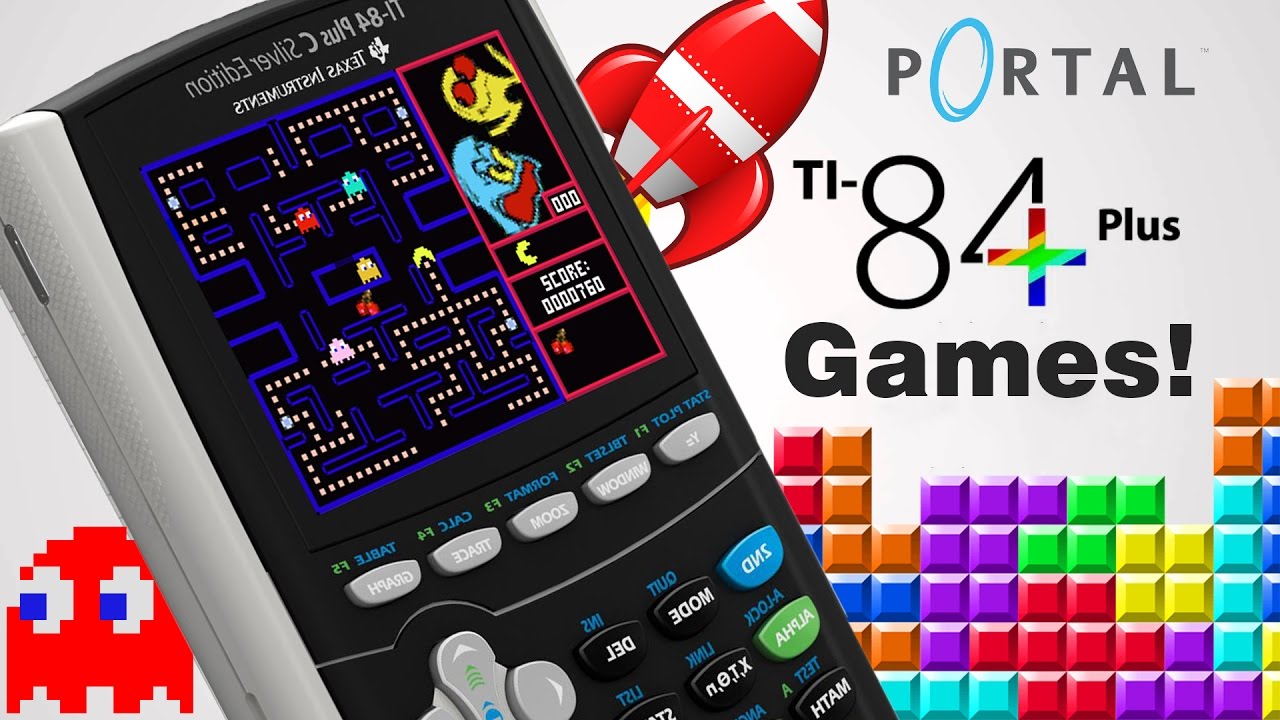


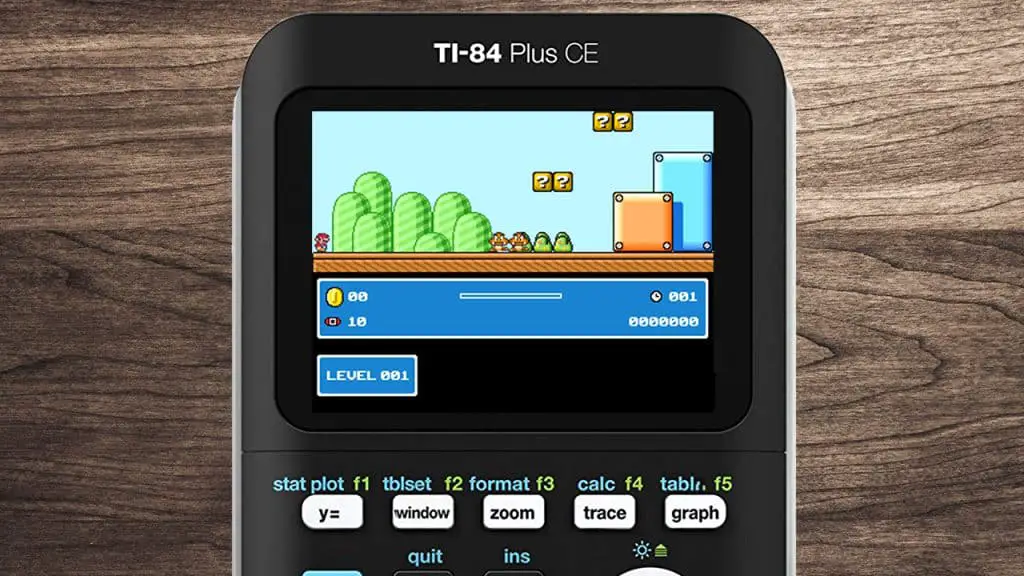

Games For Ti 84 Plus Silver Edition Detroit Chinatown . How To Put Games On Your TI 84 Plus C Silver Edition Caluclator 6 . How To Install Games On TI 84 PLUS CE Calculator YouTube . How To Download Games On A TI 84 Plus CE CalcPlex 1024x576 . Send TI 84 Plus CE Games 2025 For Beginners YouTube

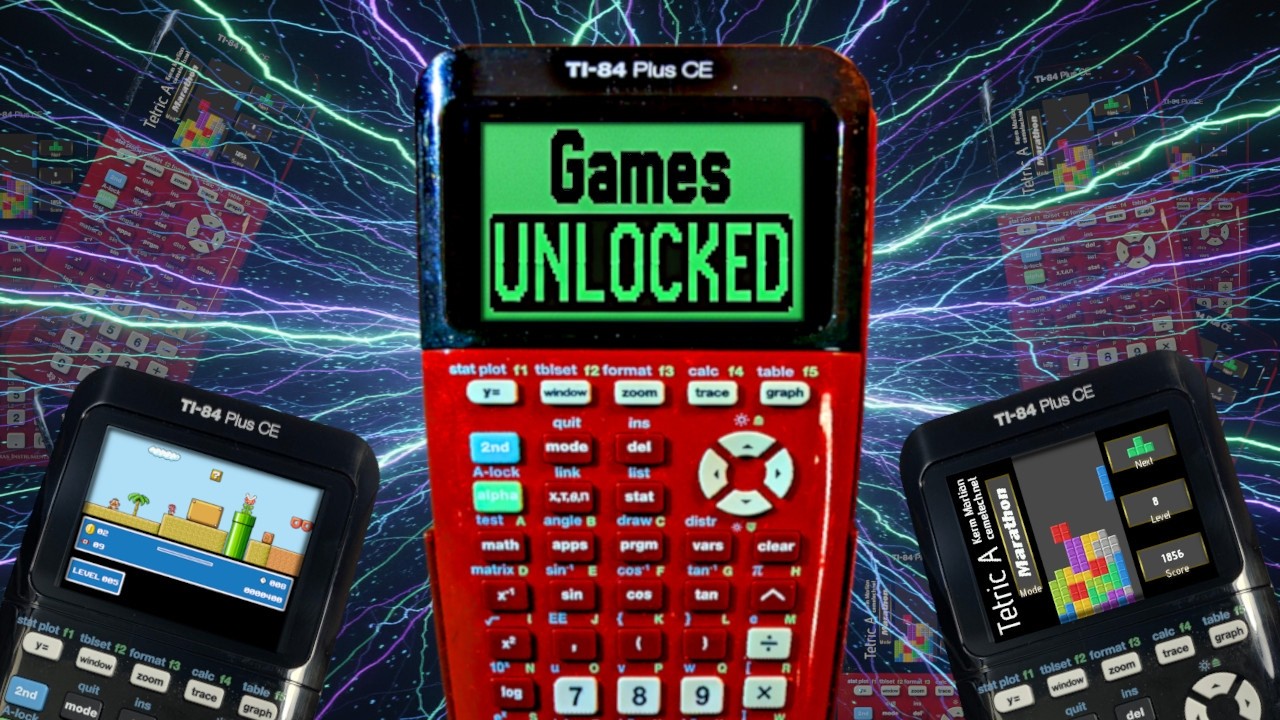
How To Play Games On The Ti 84 Plus CE YouTube . How To Put Games On A TI 84 Plus CE 7 Steps . Calculator Games UNLOCKED 2025 TI 84 Plus CE Jailbroken Again YouTube . Download Games For Ti 84 Plus Ce Detroit Chinatown . Ti 84 Plus Ce How To Install Games


How To Install Games On Your TI 84 Plus CE 11 Steps . How To Put Games On The TI 84 Plus CE Still Works 2023 800x450. How To Install And Play Games On Your TI 84 Plus CE In 2020 YouTube Hqdefault . How To Put Games On Your TI 84 Plus C Silver Edition Caluclator 6 . Fan S Favorite Features On TI 84 Plus CE Texas Instruments 84fan Colors Menu


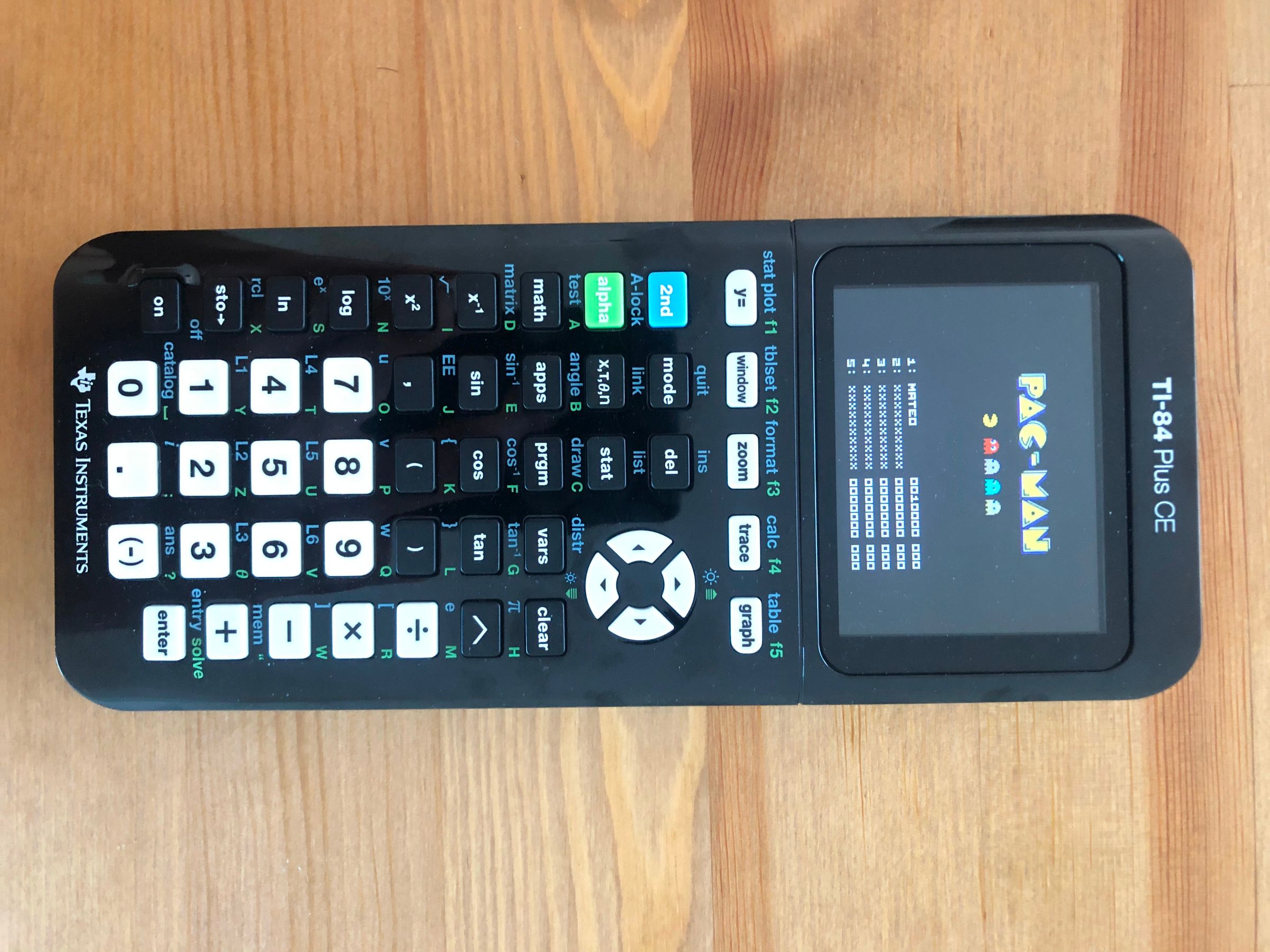
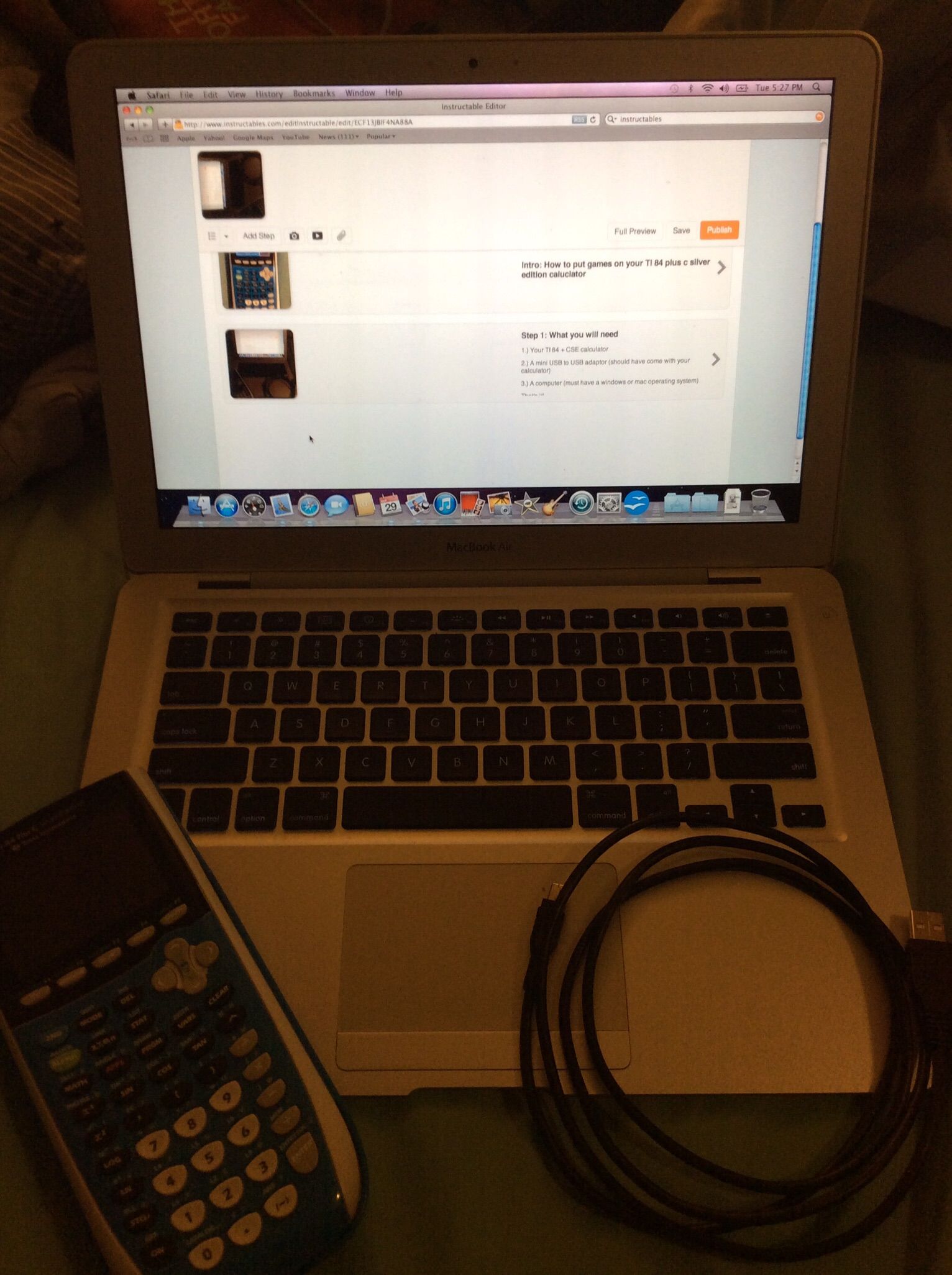
How To Put Games On Your TI 84 Plus YouTube Hqdefault . Put Games On Your TI 84 Plus CE 2016 Update YouTube Hqdefault . How To Put Games On A TI 84 Plus CE 7 Steps . How To Install Games On Your TI 84 Plus CE 11 Steps . How To Put Games On Your TI 84 Plus C Silver Edition Caluclator 6


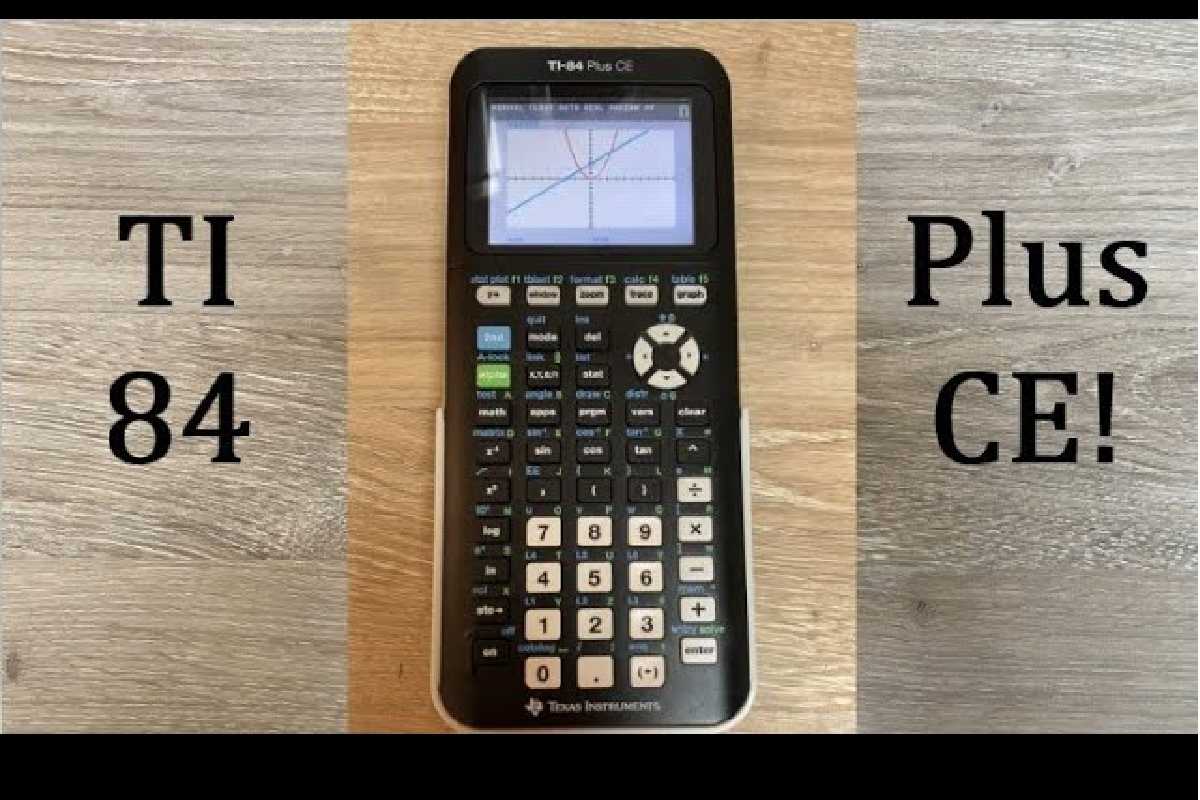
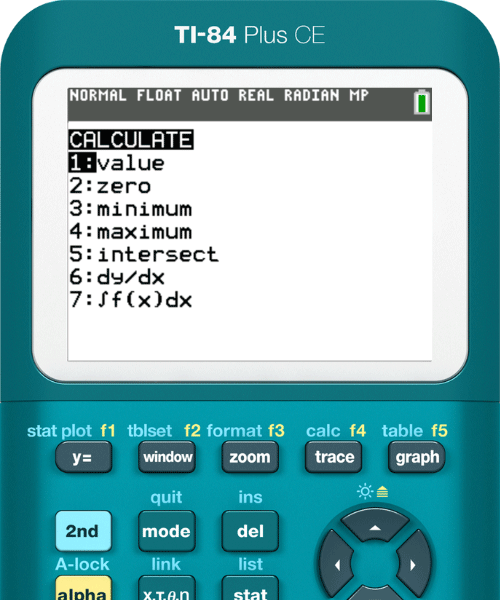

How To Put Games On Your TI 84 Plus Or TI 84 Plus Silver Edition 5 . How To Delete Game And Programs On Your TI 84 Plus CE YouTube . TI 84 Plus CE TI 84 Plus CE . Fan S Favorite Features On TI 84 Plus CE Texas Instruments 84fan Gc Calcmenu . Does Anyone Know How I Can Put Pok Mon Red Or Blue Onto My Friend S Does Anyone Know How I Can Put Pokemon Red Or Blue Onto My V0
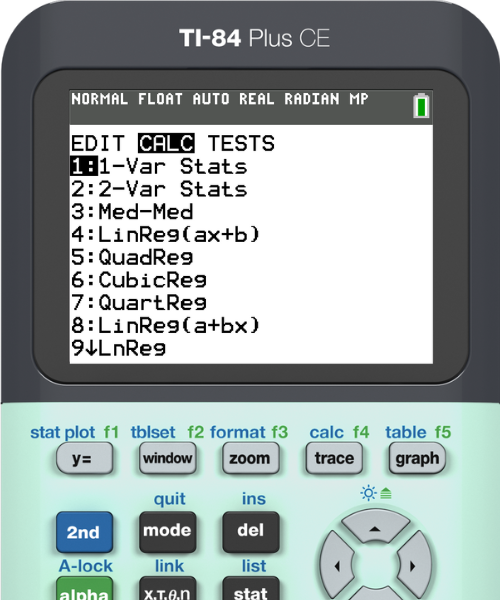



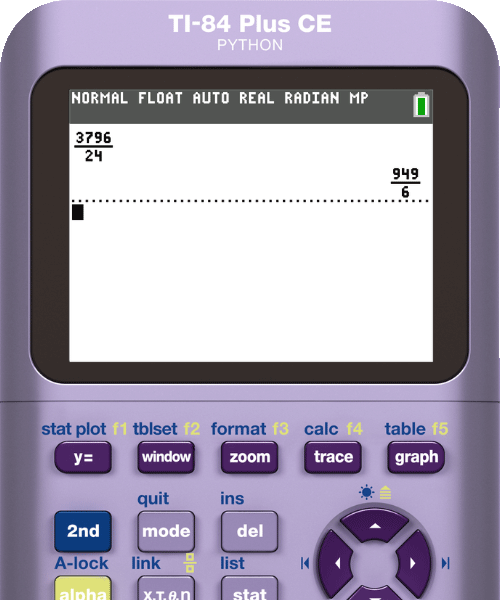
Fan S Favorite Features On TI 84 Plus CE Texas Instruments 84fan Stats Statmenu . How To Graph On TI 84 Plus CE Calculator Step By Step Guide 07 How To Plot A Graph On TI 84. How To Add Games To Ti 84 Plus How To Add Games To Ti 84 Plus . I Was Trying To Install Software On My TI 84 Plus But Ended Up I Was Trying To Install Software On My Ti 84 Plus But Ended V0 . Fan S Favorite Features On TI 84 Plus CE Texas Instruments 84fan Mathprint Fraction


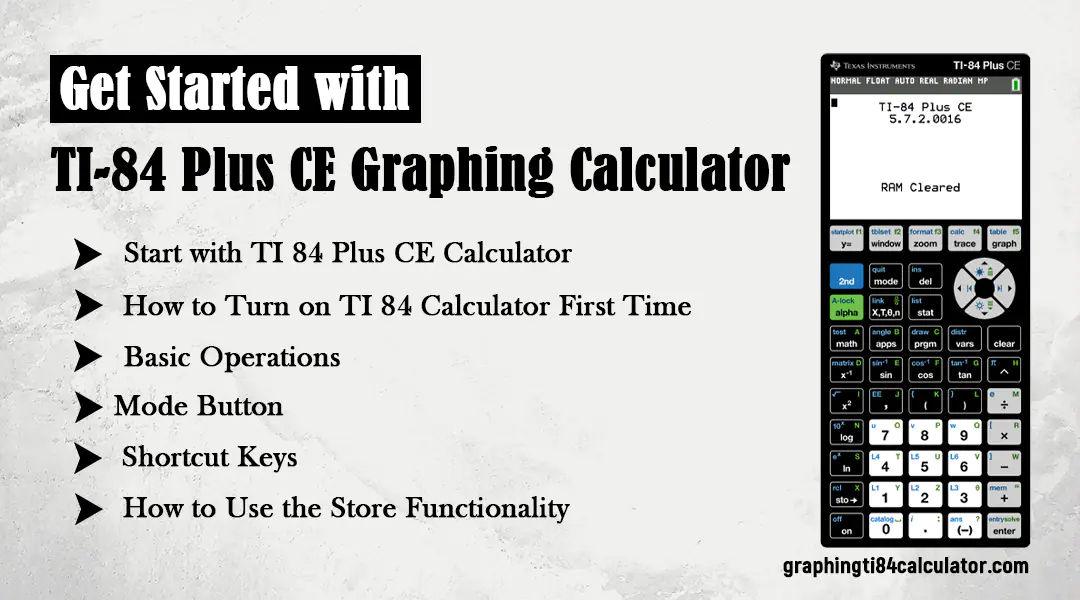

How To Check Battery On Ti 84 Plus Detroit Chinatown . TI 84 Plus Silver Edition Calculator Games YouTube . Quadratic Formula Program Ti 84 Plus Ce . TI 30XS Calculator Online TIX 30 Multiview Calculator 2026 Get Started With TI 84 Plus CE Graphing. Installing A Game On Ti 84 Plus CE Geometry Dash YouTube